Showing posts with label PC Tips and Hacks. Show all posts

Solved - Autodesk 0xc000142 error | This application was unable to start correctly (0xc000142). Click OK to close the application

Lots of time when we are using any product or software of Autodesk, we get an application error saying "This application was unable to start correctly (0xc000142). Click OK to close the application." This error pops up because your version of Autodesk is not compatible with the version of your windows operating system. In order to solve this follow this steps -

     1. Go to https://www.autodesk.com/

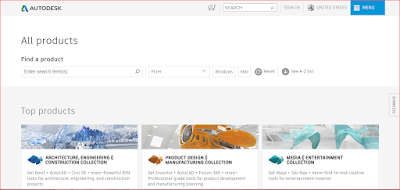
     2. Go to products and select your product (or software). You can also visit directly https://www.autodesk.com/products and search or select your product.


     3. Open Support and Learning from the product page.


     4. Open Downloads.


5. Now download the service pack updates and restart your product. That's it. You won't get 0xc000142 error now. Still getting error. Mention in comments and we will try to find a better solution.


Fix - Ezvid Not Working, Windows is checking for Solution


So, you use Ezvid to record stuff on your PC. You must have faced this at least once if you have been using Ezvid for quite some time. Even after reinstalling it, the error won't go.

Below method has solved "Ezvid not working" error for like 45% of people facing it. It may or may not work for you. If it doesn't then follow next steps. Try every step in the order they are written. If all of those steps also fail to solve this error, then you should consider using some other recording software.

Solution 1:-

Go to Start > Control Panel > Turn Windows features On or Off.

Check the box of Microsoft .NET framework 3.5.1 (version may be different). The box containing blue square in it means that the feature is ON. Check this video for reference.


Once the box is checked click OK. It will take some time to respond.

If the above solution doesn't work do the steps below in the order they are shown. Try each one. 
   
  1. First of all this are minimum system requirements:-
        Windows XP SP3 / Vista / 7 / 8
        2.0ghz processor
        1gb ram
        10GB free hard drive space
        1024 x 768 resolution
        DirectX 9.0 or later
        Windows Media Player

     2. Make sure you have most recent windows updates installed in your pc. If you are not sure, just go to search. type Windows Update, open it and click to Update.

     3. Go to this folder: C:/Users/yourusername/Documents/ezvid/projects and then delete all of your projects. Sometimes error occurs coz of corrupt projects. If you dont want to delete all, then try one by one. I recommend to sort all projects with date modified and delete one by one.

     4.Download Ezvid directly from this page. NOT FROM ANY OTHER SOURCE.
http://ezvid.com/


     5. Download and install the codec from here. You might experience problem because proper codec is not installed. https://dl.dropboxusercontent.com/u/2128641/LagarithSetup_1327.exe

     6.Try to set your hardware accelaration to FULL. Here's the link how to do it.
https://www.youtube.com/watch?v=8U-um6nfcKU

     7.Run Microsoft’s Windows Media Player Fix Tool. Here's the link.
https://support.microsoft.com/en-us/mats/windows_media_player_diagnostic

     8.Try to update your graphics card drivers. Check this:-
https://www.youtube.com/watch?v=123EGBXnprA

     9. Go to My Computer--Manage--Device Manager--Display Adapters. If you have "Standard VGA" as your display adapter it wont work. See this:-
https://helpx.adobe.com/creative-suite/kb/update-graphics-driver-windows-7.html

     10. If still none of above steps worked, then try directly contacting their customer support with screen shot of you error.
http://www.ezvid.com/contact#1

     11. If that also doesn't work, then forget Ezvid. It is not made for ur pc. Install any similar software. 

How to Make Bootable Pen Drive/Flash Drive


How would you install a new operating system if your PCs CD or DVD drive is not working? Or say you have setup file but don't want to burn it on the DVD.

Well there is a very simple way to do this. It will save your money of integrating new CD/DVD drive and the best thing is, its all free and can be done in few minutes only. Just make a bootable pen drive. You can use it without any hassle to install new operating system. Follow this steps:-

Step 1:- First of all insert your pen drive into PC and format it. Now go to https://wintoflash.com/download/en/ and download the software. Install it. It is an open source software. Also, copy setup of windows in your PC/Laptop before using this.


Step 2:- Now open it and select the wizard mode.


Step 3:- Browse to the setup file of your operating system. If its an ISO file, check the mark below.


Step 4:- Browse to the drive of your pen drive.

Step 5:- Just click next and let the process complete. It will take around 5-10 minutes.

Now click finish and remove your pen drive. Insert it into your PC and press ESC key to enter boot menu (compaq systems). Google search to find boot menu key for your system.


Just follow the instructions and install new operating system. Easy, right? Mention in comments if having any difficulty. Check this video to better understand.


Solution - C-Drive Space Filling Automatically

Is your hard-disk taking too much of space? You tried so many things to find out what is taking so much of space but got nothing? This article is for people who are very much irritated by this hidden taking so much of space on your Hard Drive. It will show you how to determine what is using your storage.


Follow below steps to determine all the unwanted and unnecessary things which are acquiring huge storage on your Hard Drive and still are not of any use.

Step 1:- Go to http://www.fosshub.com/WinDirStat and download WinDirStat application.

It is basically a space analyser program. Install it and and then open.

Step 2:- Now, select the drive and click OK. Let the process complete.

(Note:- It takes little time and often freezes at some time. Don't worry if it freezes, it will resume on its own after some seconds. Also, don't start any other program in between. Or else, you might get not responding error.)


Once 100% scan is completed and you are done with results check the rightmost bar. It contains details of files with the storage space it is acquiring on your Hard-Disk.

Step 3:- Click on the drive and see the items. Items are already sorted by maximum size.

Most of the times, the unwanted files are media cache files. You can copy the path of the file and then manually delete it. Check this video, it will help.


Popular Posts

Sponsor